
Your Settings are where you control your account top to bottom — how you look, what language you read in, your plan, your notifications, and your data. Here's the full tour.
1. Open Settings
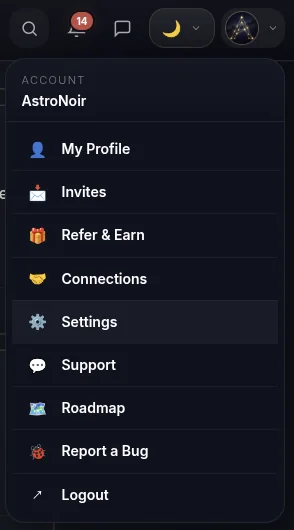
Tap your avatar in the top-right corner and choose Settings.
2. Change your avatar
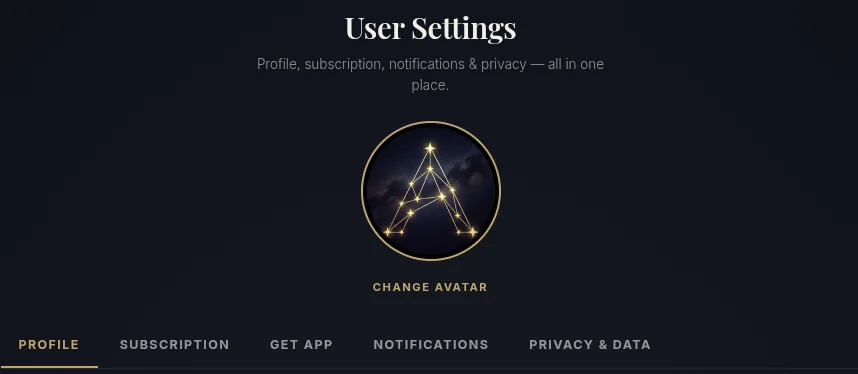
Tap your picture — or the Change avatar button — to upload a new one. This is the image people see next to your name across AstroNoir.
3. Profile & language
The Profile section holds the basics:
- Full Name — how the app addresses you in your own readings.
- Public Name — the display name everyone else sees (more in How to Set Up Your Public Profile).
- Language — AstroNoir's interface is currently available in English, German, French, and Serbian, with Spanish and Italian on the way and more European languages to follow. Switch here and the app reloads in your chosen language.
- Current residence — where you live now, so the app knows your present location (separate from where you were born).
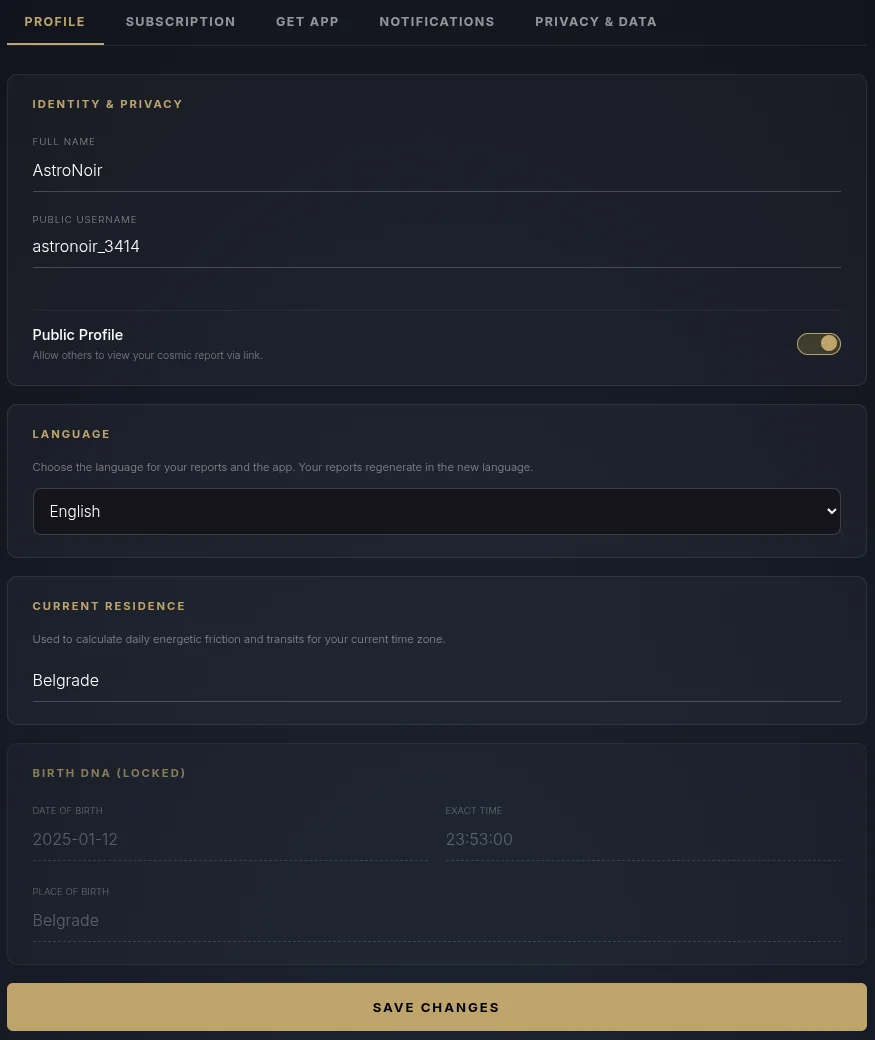
Birth details (date, time, and place of birth) are locked here — they're the foundation of every calculation, so they can only be changed through a Support request. See How to Change Your Birth Details.
4. Subscription & billing
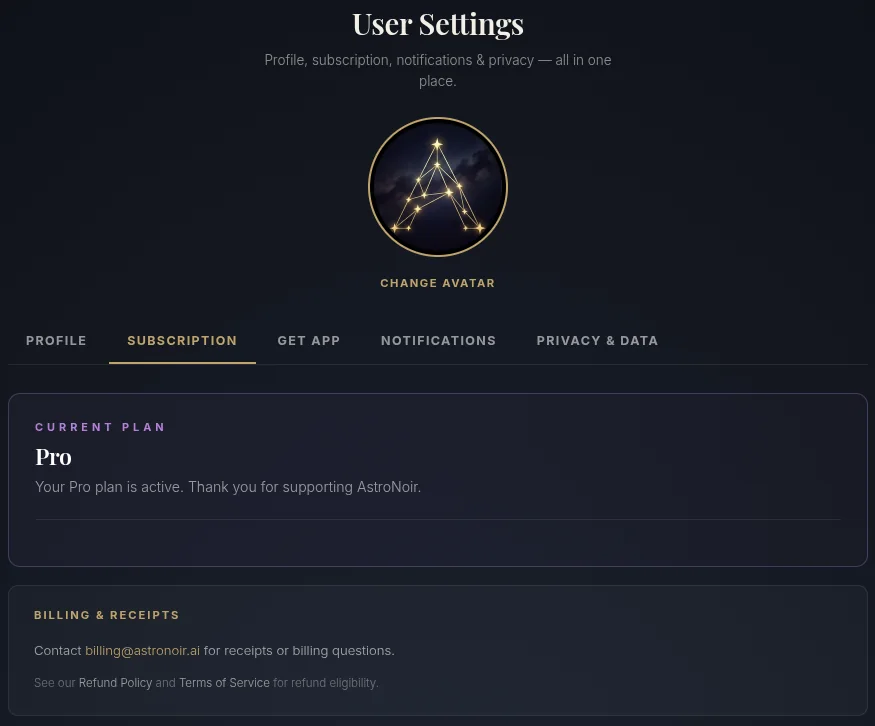
See your current plan, your billing details, and exactly when it renews or ends. From here you manage or cancel your subscription — through Google Play on the app, or your payment processor on the web. To compare plans, see Membership & Tiers and How to Upgrade.
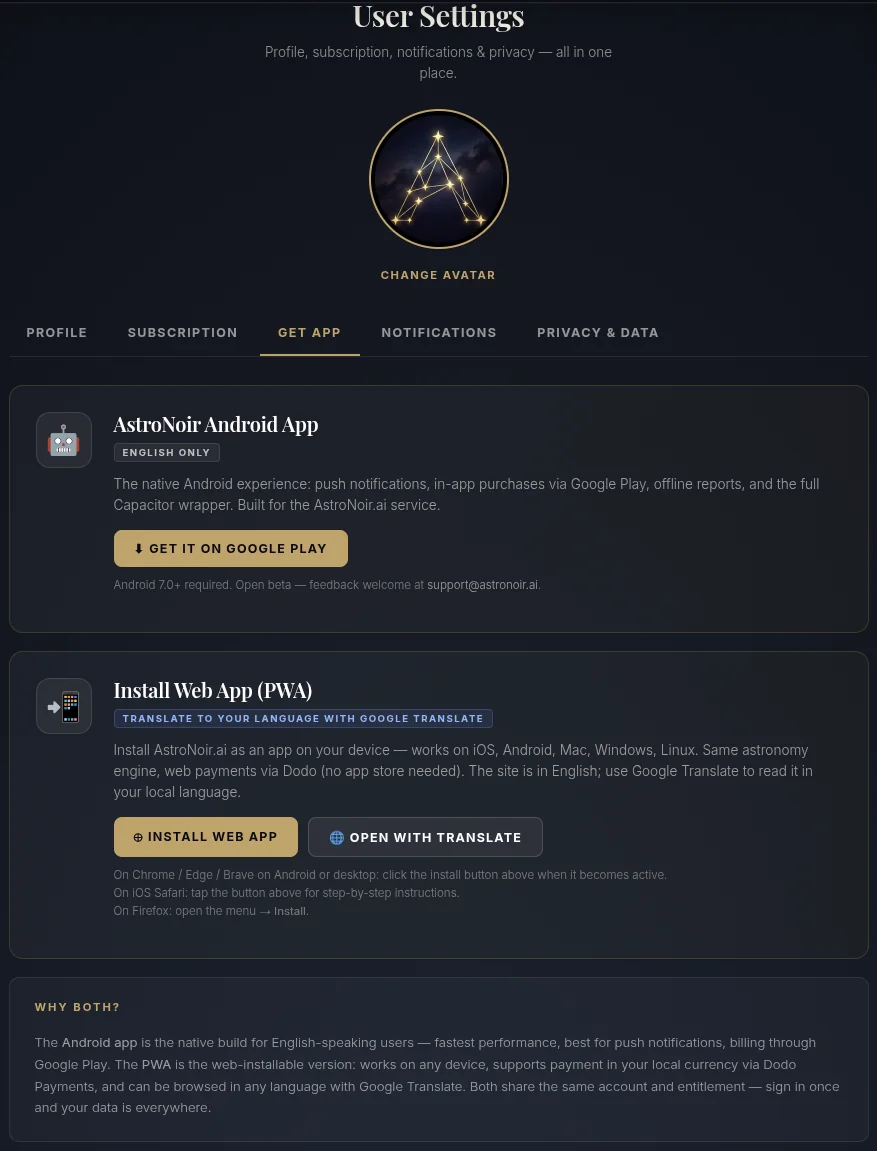
5. Get the app
Download the Android app, or install the Web App (PWA) straight to your home screen. The PWA is handy if you'd like to read AstroNoir in a language we don't fully support yet — you can run the site through your browser's Google Translate. An iOS app is coming soon.
6. Notifications
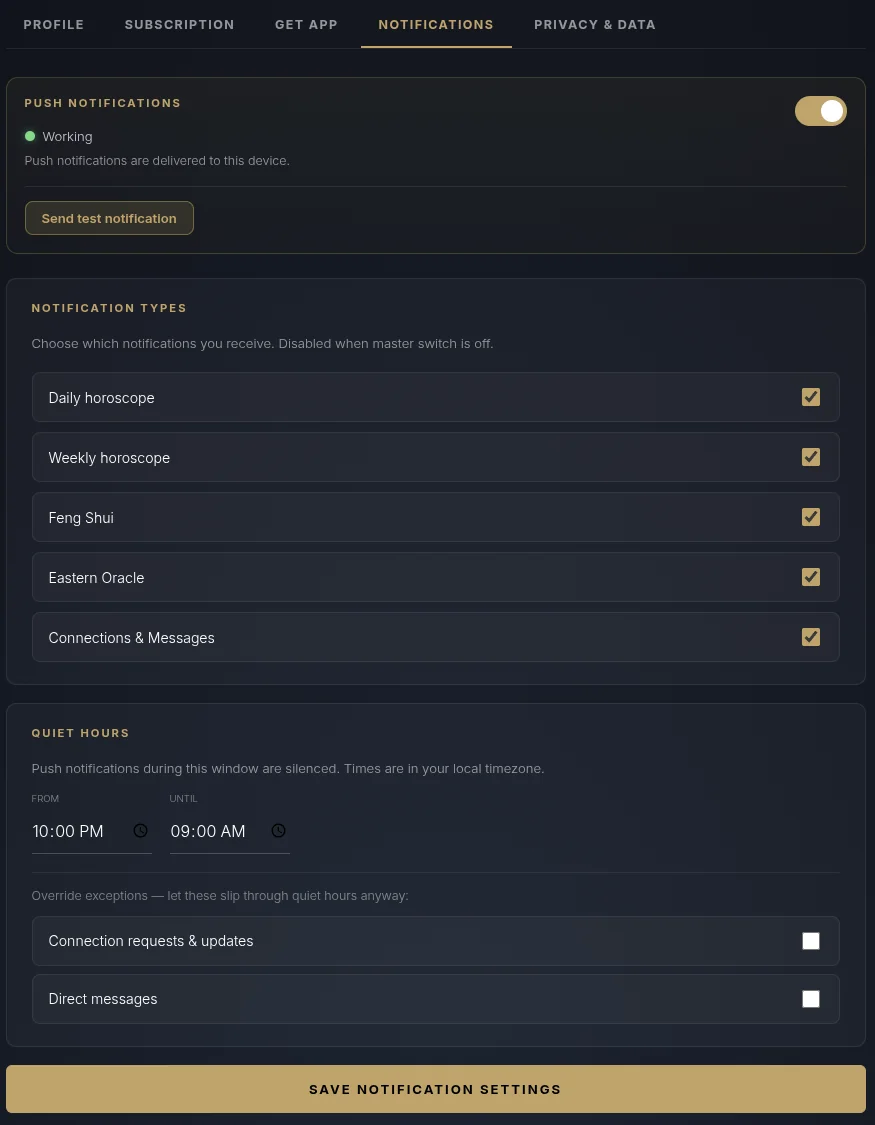
Test that push notifications are working on your device, choose which types you receive, and set your quiet hours so nothing pings you while you sleep. Full walkthrough in How to Manage Notifications.
7. Data & privacy
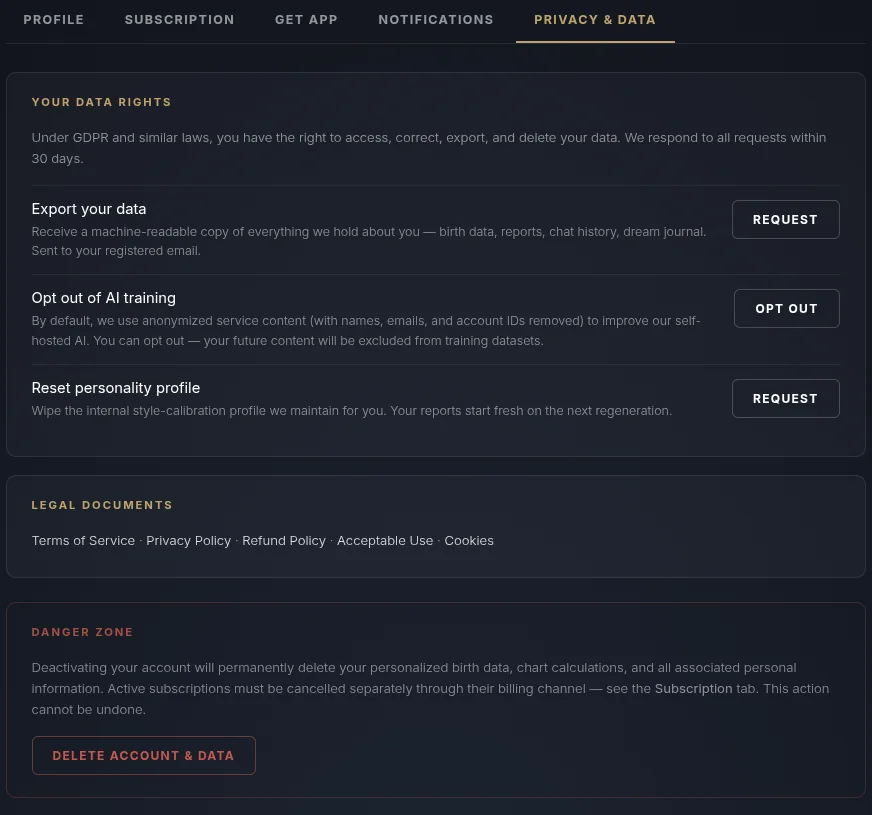
You're in full control of your data here:
- Data export — download everything we hold for you.
- Opt out of AI training — we anonymize all reports and plan to use them to improve our AI model, vocabulary, and precision. The data is fully anonymized for this — but if you'd rather not take part, you can opt out here.
- Reset Personality Profile — the system calibrates to you over time so your content and answers are specially tailored. If you'd like a clean slate, you can request a reset.
- Delete all data / deactivate account — this erases everything you've created. There is no undo.
For a plain-language overview of what we store and why, see Privacy & Your Data.
That's your Settings, end to end. Most of it you'll set once and forget — but it's all here whenever you need it.