
Push notifications make sure your readings actually reach you, instead of waiting for you to open the app — and you're fully in control of which ones you get and when. Here's how to switch them on and make them yours.
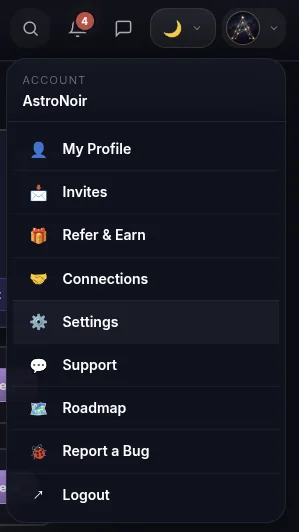
- Open Settings. Tap your avatar in the top-right corner to open the account menu, then choose Settings.
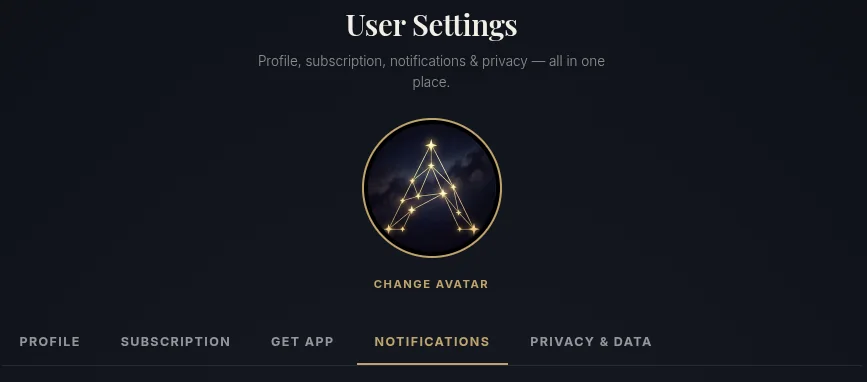
- Open the Notifications tab. In Settings, switch to the Notifications tab.
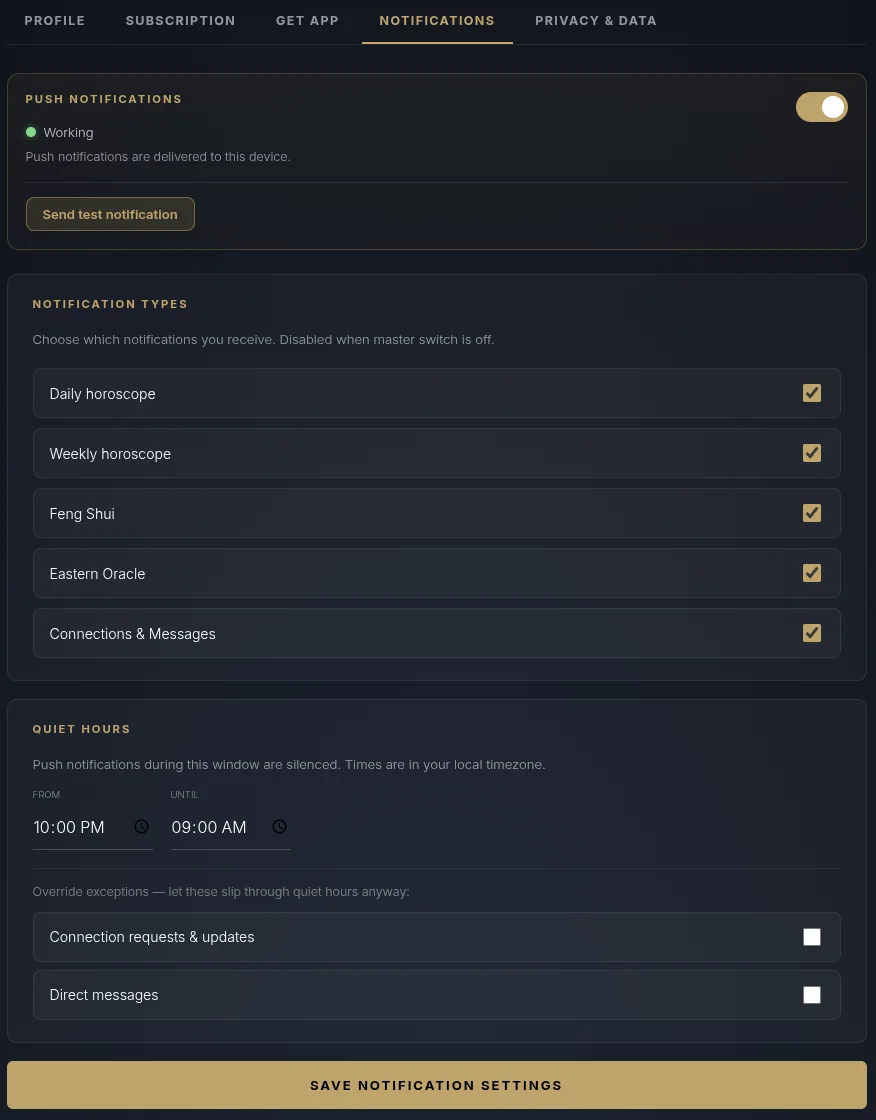
- Turn on Push Notifications. Flip the master toggle on — it should read "Working." Tap Send test notification to confirm it reaches your device. If your phone or browser asks for permission, tap Allow.
No permission prompt, or the toggle won't stay on? Your device may have blocked notifications earlier. Open your phone or browser site settings, find AstroNoir, set notifications to Allow, and try again.
Choose which notifications you get. Under Notification Types, toggle each one on or off — Daily horoscope, Weekly horoscope, Feng Shui, Eastern Oracle, and Connections & Messages. Turn on only what you actually want.
Set your Quiet Hours. By default, AstroNoir goes completely silent from 10:00 PM to 9:00 AM (your local time) — we never want to disturb you while you're resting. It's your window, though: change the start and end times to whatever suits you. You can also use the override exceptions to let connection requests or direct messages slip through quiet hours anyway.
Quiet Hours are on by default (10 PM–9 AM) for everyone. Nothing pings you overnight unless you decide to allow it — your rest comes first.
- Save. Tap Save notification settings, and you're done — your readings will reach you exactly the way you want them.
Next, start with How to Read Your Daily Horoscope.